Unity CLI: The Complete Guide to Unity's New Command-Line Tool
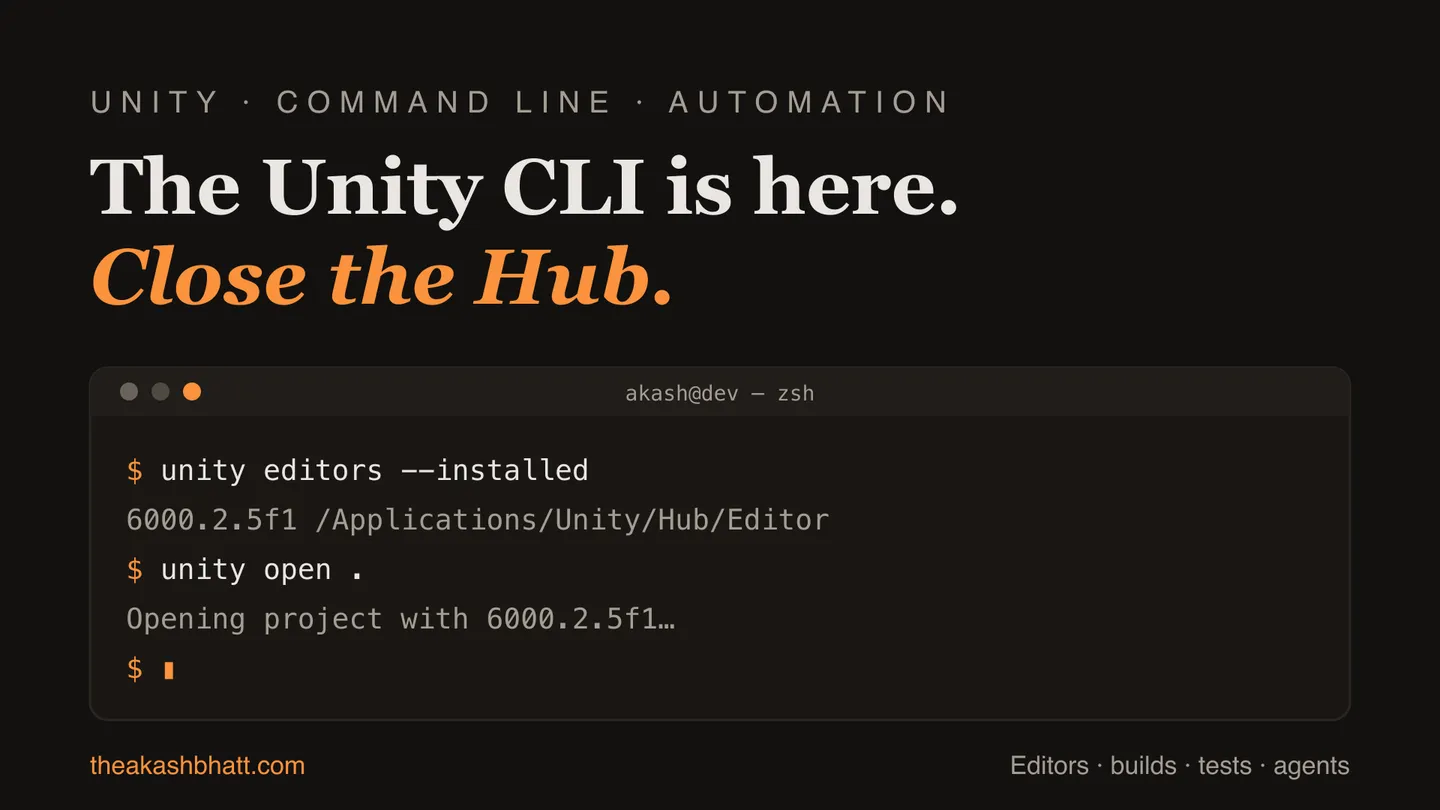
Somewhere on a shelf in my office is a Mac mini that spent four years as a build machine, and on that Mac mini is a 300-line bash script called hubwrangler.sh that I am genuinely embarrassed by. Its job was to install Unity Editors through the Unity Hub’s headless mode, and it is 300 lines because the Hub’s headless mode lied constantly. It reported exit code 0 when installs failed. It printed errors to stdout, except when it swallowed them entirely. It needed the full Electron desktop app installed just to run a command, and on our Linux runner it refused to work at all without a fake display server, so there is a xvfb-run in there too, wrapped in a retry loop, wrapped in a function called pray().
I mention this because in July, Unity shipped the thing that script always wanted to be: an official, standalone Unity CLI. One binary named unity, no Hub required, real exit codes, JSON output, and commands for editors, projects, licenses, builds, and tests. Alongside it came an experimental package that lets the terminal talk to a running editor, which is a stranger and more interesting thing than it sounds. I have spent the weeks since poking at both, breaking them in the ways I break everything, and this is everything I know: what it does, how to use it, where it fits in CI, and where it still falls over. It is a long one. Get coffee.
What the Unity CLI actually is (and what it isn’t)
The Unity CLI is a standalone command-line application, distributed as its own binary for macOS, Windows, and Linux on both x64 and Arm64. You install it, you type unity, and you can install and manage Unity Editors and modules, open and organize projects, sign in, activate and return licenses, run builds, and run tests, all without Unity Hub existing on the machine. It shipped its first public beta quietly in April 2026 and got its proper announcement on July 20, a day before Unite Seoul.
Three clarifications before anything else, because the naming situation is a mess.
First, this is not the Unity Hub’s old headless mode. That thing, the "Unity Hub.exe" -- --headless install incantation, is now officially deprecated with minimal support from Hub 3.18.0 onward. If you have scripts built on it, they are living on borrowed time, and there is a migration guide I will get to.
Second, this is not the community npm package also called unity-cli (the RageAgainstThePixel one), nor any of the other unofficial wrappers that have carried that name over the years. Search results mix them together freely. The official one lives at docs.unity.com/en-us/unity-cli and installs a command named plain unity.
Third, it is not the UGS CLI. Unity Gaming Services has its own separate command-line tool (ugs) with its own service-account variables. Two different products, and the environment variable names do not transfer between them. This will matter later when we do CI auth.
One more thing that colors everything in this post: the Unity CLI is experimental. Every documentation page carries the same warning that features and commands may change in an upcoming release, and they have not been shy about exercising that right. Commands have already been renamed between betas (unity implode became unity self-uninstall, unity request became unity command). Nothing here is a reason to avoid it, but it is a reason to pin versions in anything you depend on, and to treat unity --help as more authoritative than any blog post, including this one.
A short history of Unity’s command-line story, or why this took sixteen years
To understand why people got emotional about a CLI announcement, you need the before picture.
Unity has technically been scriptable from the command line since around 2010. The editor accepts arguments like -batchmode, -quit, -projectPath, and the load-bearing one, -executeMethod, which invokes a static C# method inside your project. Every Unity build pipeline of the last decade, including the ones I wrote about in my CI/CD guide, is built on that idiom: write a BuildScript.PerformBuild() static method, invoke it headlessly, then parse a 40-megabyte log file to find out what happened, because the editor’s idea of failure reporting was “exit 1 on exception, usually.” There are famous support articles about builds that failed and returned 0 anyway. It worked, in the way a rope bridge works.
Then there was the other command-line story, editor installation, which was worse. The editor arguments could drive an editor you already had, but getting the right editor version onto a machine meant the Unity Hub, and the Hub’s headless CLI was the least loved tool in the ecosystem. It required the full desktop app. On Linux it would not run without a display, hence everyone’s xvfb-run scars. Its exit codes were broken enough that Microsoft’s own unitysetup.powershell wrapper simply ignored them. Until Hub 3.7.0 it omitted errors from console output unless you passed an opt-in --errors flag, which is an incredible default if you think about it. It could not add modules to an editor it had not installed itself. And the invocation syntax differed between Windows, macOS, and Linux, so every cross-platform script grew three code paths.
The community routed around all of this. GameCI built Docker images with editors pre-baked and GitHub Actions that hid the licensing dance. Studios built internal wrappers. My hubwrangler.sh had thousands of cousins. Meanwhile Godot users would occasionally wander into a thread, mention their engine had shipped a first-class CLI in 2016, and wander out.
So when the announcement thread for the new CLI filled with developers saying thank you, that was sixteen years of accumulated pray() functions talking. One commenter called the release “a primitive instead of a product,” and meant it as a compliment. That is exactly what it is, and it is what the old tooling never gave us.
Installing the Unity CLI on macOS, Windows, and Linux
The primary install method is a script from Unity’s CDN. While the tool is in beta you select the beta channel explicitly:
# macOS or Linux
curl -fsSL https://public-cdn.cloud.unity3d.com/hub/prod/cli/install.sh | UNITY_CLI_CHANNEL=beta bash
# Windows PowerShell
$env:UNITY_CLI_CHANNEL='beta'; irm https://public-cdn.cloud.unity3d.com/hub/prod/cli/install.ps1 | iexThen verify:
unity --versionOne immediate gotcha: a fresh install is not visible in shells you already had open, and on some setups re-sourcing your profile is not enough either. Close the terminal and open a new one before concluding the install failed. You would think I would not need to be told this twice. I needed to be told twice.
If you prefer a package manager, and on CI runners you should, because pinning matters, there are proper options now:
# Homebrew, macOS and Linux (the cask is unity-cli, the command is unity)
brew install --cask unity-cli
Debian and Ubuntu get a signed apt repository:
curl -sL https://hub.unity3d.com/linux/keys/public | sudo gpg --dearmor -o /usr/share/keyrings/Unity_Technologies_ApS.gpg

sudo tee /etc/apt/sources.list.d/unity-cli.sources <<'EOF'
Types: deb
URIs: https://hub.unity3d.com/linux/repos/deb
Suites: unstable
Components: main
Signed-By: /usr/share/keyrings/Unity_Technologies_ApS.gpg
EOF

sudo apt update && sudo apt install unity-cli
Fedora and RHEL get a dnf repo the same way (baseurl https://hub.unity3d.com/linux/repos/rpm/unstable). Note the unstable in both paths; that is the beta channel, and GA builds will publish to stable. There is also a GPG-signed AppImage for Linux and an MSIX package on Windows. Winget was still “working through technical issues” per Unity staff at the time of writing, so PowerShell it is for now on Windows.
On Linux the script installs to ~/.local/bin/unity, which is on PATH for most distributions. The Linux binary wants ca-certificates, and the bundled licensing client needs unzip, both of which the packages now declare but a bare container image might not have.
Self-management is built in and pleasingly boring. unity upgrade self-updates (and is smart enough to refuse and point you at apt or brew if a package manager owns the install), unity upgrade --changelog previews release notes first, --rollback restores the previous CLI version if an update burns you, and unity self-uninstall removes the binary, environment files, and stored credentials. A background update check nags you about new versions; unity config update-check off or UNITY_NO_UPDATE_CHECK silences it.
The first ten minutes: editors, projects, and unity open
Here is the session I would give a teammate on day one:
unity auth login          # opens a browser sign-in, stores the session in the OS keychain
unity editors -r          # list available Unity releases
unity editors -i          # list what's installed on this machine
unity install lts         # install the newest LTS editor
unity open ./MyProject    # open a project with the right editor version
unity doctor              # full diagnostic snapshot when anything misbehaves
That last one deserves a call-out. unity doctor prints platform info, CLI version, install paths, auth status, installed editors, recent log entries, proxy diagnostics, and a set of environment health checks, including whether multiple unity binaries are shadowing each other on PATH and whether Windows long-path support is enabled. It is the first thing to run when something goes wrong, and the first thing to attach when you file a bug, which you can also do from the terminal via unity bug.
unity open is the command that quietly ends a whole category of daily friction. It reads the editor version the project declares in ProjectSettings/ProjectVersion.txt and launches the matching installed editor. There is even a shorthand: unity ./MyProject does the same thing, and unity 6000.3.7f1 ./MyProject launches a specific version against a path. If the version is missing, an interactive session asks before downloading multiple gigabytes rather than just going for it, which a beta.3 fix made explicit. Extra editor arguments pass through with --args, so your existing -batchmode muscle memory still has an outlet.
And if you like living in the terminal, unity shell starts a warm interactive session where you drop the unity prefix entirely, with persistent history, tab completion for commands and flags, and session context like use project ./MyGame and set format json. It boots the CLI once instead of per-command, which matters more than you would expect once you start chaining operations.
Managing Unity Editor installs from the terminal
This is the bread and butter, the part where the CLI most directly replaces the Hub. The install command takes exact versions, changesets for versions not in the release feed, and, my favorite touch, aliases:
unity install 6000.3.7f1                  # exact version
unity install lts                         # newest long-term-support release
unity install latest                      # newest release of any kind
unity install 6                           # newest release in the 6.x stream
unity install 2022                        # newest in the 2022 stream
unity install 6000.3.7f1 -c 9b001d489a54  # changeset hash for off-feed versions
Modules install inline or after the fact, and --cm (child modules) pulls dependent tooling like the Android SDK, NDK, and OpenJDK in one go:
unity install lts -m ios android webgl
unity install 6000.3.7f1 -m android --cm
unity install-modules -e 6000.3.7f1 -m ios      # add to an existing editor
unity install-modules -e 6000.3.7f1 -l          # list what's available
unity install-modules -e 6000.3.7f1 --all       # everything, if disk space means nothing to you
unity editor module remove ...                   # and back off again
On macOS, -a arm64 or -a x86_64 picks Apple silicon versus Intel builds explicitly. Downloads retry automatically (--retries, or UNITY_INSTALL_RETRIES in the environment), and --resume picks up interrupted multi-gigabyte downloads instead of starting over, which anyone who has installed an editor over hotel wifi will appreciate at a spiritual level.
Around the core install commands there is a full management layer: unity editors add <path> registers editors you installed manually (and unlike the old Hub, the CLI can then add modules to them), unity editors default 6000.3.7f1 sets the default, unity editors info and unity editors path report metadata and locations, unity install-path moves where editors land, and unity uninstall 6000.3.7f1 cleans up. Two newer additions are small but excellent: unity editors upgrade bumps an editor to the newest patch release in its same major.minor line and carries its modules over, and unity editors running lists live editor instances with their project, version, and process ID, which turns “is anything still holding that project open on the build machine” from a task-manager expedition into one command.
The punchline of the section: unity hub install exists. The CLI can install the Hub. The child has become the parent.
Managing Unity projects and templates from the CLI
The projects command group covers the Hub’s project list and then keeps going into territory the Hub never touched:
unity projects                      # list registered projects
unity projects open MyGa            # fuzzy-matched open, typos welcome
unity projects new MyGame --template <id> --editor-version 6000.3.7f1
unity projects clone <repo-url>     # GitHub, GitLab, or Unity Version Control
unity projects upgrade ./MyGame --to 6000.3.7f1
unity projects require android ios  # verify required modules are installed
unity projects size --all           # disk usage per project, largest first
unity projects close ./MyGame       # ask a running editor to close, --force if it sulks
unity projects pin MyGame           # pins, export/import of project lists, cloud links
projects clone understands branches, commits, and changesets, pulls Git LFS objects, and can link a project to Unity Cloud or version control afterward. projects require is a CI pre-flight check with no legacy equivalent at all: fail fast because the runner lacks the iOS module, instead of twenty minutes later with a cryptic build error. And projects size --all produced a number for my archive drive that I choose not to publish.
Templates are no longer an afterthought either. unity templates list and info cover the official ones, but unity templates create packages an existing project as a reusable custom template, with edit, delete, and a configurable storage location alongside. If you maintain a studio starter project, the kind with your folder conventions, your assembly definition layout (the one I argued for in my asmdef post), your logging setup, this is the mechanism that turns it from “repo you clone and rename” into an actual template that unity projects new can consume.
Unity CLI output formats, exit codes, and environment variables
This section is the reason the CLI exists, so I am going to be thorough.
Every command supports four output formats, and the default is context-sensitive: human when stdout is an interactive terminal (colors, progress bars), tsv automatically when output is piped or redirected, json on request, and ndjson for streaming. That auto-switch to TSV on pipe is the tell that someone who actually writes shell scripts designed this.
unity editors -i --format json    # or the --json shorthand
unity editors -i | cut -f1        # piped output is already tab-separated
unity install lts --format ndjson # one JSON object per line, typed progress frames
JSON output uses a standard envelope, success, command, data, errors, warnings, so jq '.data' works uniformly across commands. NDJSON streams progress for long operations (installs even tag frames with phase: download or phase: install) and ends with a result frame. Errors and diagnostics go to stderr, data goes to stdout, and in the machine formats even the editor’s batch-mode chatter from unity run and unity test is routed to stderr so your stdout stays parseable. If you have ever grepped a Unity log for the string “Aborting batchmode due to failure,” you understand what a gift this is.
The exit codes form an actual contract:
| Code | Meaning |
|---|---|
| 0 | Success |
| 1 | General error, check stderr |
| 2 | Usage error: bad flags or missing arguments |
| 3 | Authentication or authorization failure |
| 4 | Configuration required but not set |
| 6 | The primary operation failed: install failed, tests failed, eval hit a compile error |
| 130 | Interrupted, Ctrl+C |
| 143 | SIGTERM, which is what a CI runner timeout sends |
Code 6 is the star. “The command ran correctly and the thing it ran reported failure” being distinguishable from “the command itself blew up” is the difference between if statements and log forensics.
For unattended environments there is a matching set of switches and variables: --non-interactive, --quiet, --yes, --no-banner as flags, and UNITY_FORMAT, UNITY_NON_INTERACTIVE, UNITY_QUIET, UNITY_PROJECT_PATH, UNITY_PROXY, UNITY_NO_UPDATE_CHECK, UNITY_NO_CONSENT_PROMPT and friends in the environment, with flags winning over variables. Set UNITY_NO_CONSENT_PROMPT on CI so the first-run analytics question never blocks a job. On the privacy front, credit where due: analytics are opt-out by default with an explicit consent prompt, they record command names only, never arguments or project names, and crash reporting can be disabled with UNITY_NO_CRASH_REPORT.
Corporate networks are handled better than the Hub ever managed: HTTP, HTTPS, SOCKS, and PAC proxies, authenticated proxies including Kerberos and SPNEGO, a unity config proxy store, and unity diagnose proxy printing a redacted report that is safe to paste into an IT ticket.
Unity CLI authentication: service accounts and license activation
Interactively, unity auth login opens a browser and stores the session in the OS keychain (Keychain on macOS, Credential Manager on Windows, libsecret on Linux). unity auth status and unity auth logout do what they say. Since beta.8 the CLI’s credentials are stored separately from the Hub’s, so the two can even be signed in as different accounts, which sounds niche until you have a personal account and a client organization account on the same machine, at which point it is the whole feature.
The headless story is where things get materially better than what I documented in the GitHub Actions guide. A browser flow is useless on a runner, so the CLI supports Unity service accounts: create one in Unity Cloud under Administration, generate a key, and set two environment variables:
UNITY_SERVICE_ACCOUNT_ID=...
UNITY_SERVICE_ACCOUNT_SECRET=...
Set both (the CLI warns if it sees only one) and every command authenticates unattended. No browser, no .ulf file gymnastics, no storing your actual Unity password as a CI secret, which the old GameCI flow required and which never stopped feeling wrong. Careful with the names though: the separate UGS CLI uses UGS_CLI_SERVICE_KEY_ID and UGS_CLI_SERVICE_SECRET_KEY. Same concept, different product, and the variables are not interchangeable.
Licensing is a first-class command group now:
unity license list       # what's active: product, type, org, expiration
unity license status
unity license activate   # serial, Personal, floating, and offline workflows
unity license return     # free the seat
unity license server status
Floating license servers are supported natively, which the old manual-activation path never handled, and offline request/file workflows exist for air-gapped machines. The pattern for CI is activate at job start, return in an always() cleanup step, exactly the seat hygiene that used to require a community action and some hope. Seat limits themselves have not changed, only the ergonomics of respecting them.
Running builds with unity build
unity build runs a batch-mode build of your project with flags aimed squarely at CI. The parts I have verified and the docs commit to:
Version management is smarter than it has any right to be: --versioning-strategy can derive the build version from Git tags and repository history, so your tag is your version and nobody edits ProjectSettings by hand on release day. In the same spirit, the CLI refuses to build from a dirty working tree unless you explicitly pass --allow-dirty-build. That default made me smile. Whoever wrote it has also shipped the same bug twice in one night from a machine with uncommitted changes.
Android, the platform where command-line building historically meant a small ritual, gets serious support: keystore and signing key configuration, version code, symbol generation, target SDK selection, and export as an APK, an App Bundle, or an Android Studio project. The CLI even validates signing parameters up front and warns when you pass secrets as raw command-line arguments.
The bigger conceptual shift: for the standard case you no longer need a project-side build script at all. The classic idiom required writing BuildScript.PerformBuild() and invoking it with -executeMethod; the modern editor can build straight from a build profile, and unity build drives that path with clean flags on top (on Unity 6, where build profiles live). Custom steps, uploading to Steam, Addressables content builds, the weird stuff, still want a script, but now there is a better home for those too, which I will get to with [CliCommand].
Long builds stream --format ndjson progress frames, an interrupt exits 130, a runner timeout exits 143, and a beta.4 change (rolling out literally as I write this) adds --target, --output-path, and --profile selection without touching C# at all. Honest caveat: per-flag documentation for unity build is still the thinnest part of the official docs, and I hit flags in --help that the reference page does not mention. Trust unity build --help on your installed version over any blog, again including this one.
Running tests with unity test
Short section, because the command is short, and that is the point:
unity test ./MyProject --mode editmode --output test-results.xmlIt runs Edit Mode and Play Mode tests through the Unity Test Framework in a headless editor, writes an NUnit XML report wherever --output points (default test-results.xml), and exits 6 if tests ran and any failed. That XML feeds straight into GitHub’s test reporters, GitLab’s JUnit artifacts, or Jenkins. There are --filter, --timeout (plus a UNITY_TEST_TIMEOUT variable), --editor-version, and --architecture knobs.
Compare the before picture: -runTests -testPlatform editmode -testResults ... plus the well-documented trap where combining it with -quit could kill the test run mid-flight, plus parsing to distinguish “tests failed” from “editor crashed.” The new command collapses all of that into an exit code check. This is the least glamorous command in the CLI and might be my favorite.
The Unity Pipeline package: a live wire into the editor
Everything so far is the CLI managing around Unity. This half is the CLI reaching inside it, and it is where the launch stops being a quality-of-life release and becomes something new.
The experimental Unity Pipeline package (com.unity.pipeline, currently 0.5.0-exp.1) embeds a small HTTP server in the editor: localhost-only, default port 7800, gated by a bearer token the editor writes to Library/Pipeline/.unity-pipeline-port. It requires Unity 6.0 or later, full stop. Projects on 2021 or 2022 LTS get everything in the first half of this post and none of what follows.
Setup is two commands from your project directory:
unity pipeline install    # adds com.unity.pipeline, wait for the recompile
unity pipeline list       # expect "Pipeline: Installed", server connected on port 7800
From then on, with the editor open:
unity status                              # connected editors: port, project, version, PID
unity command                             # list the commands this editor exposes
unity list                                # same, but with full parameter schemas
unity command eval "return UnityEditor.EditorApplication.isPlaying;"
unity command eval_file Scripts/InspectScene.cs
eval is the headline act. It compiles the C# you pass with Roslyn and executes it on the editor’s main thread, no project recompile, no domain reload, result back in milliseconds. The first time I ran a scene query against a live editor while it was in Play Mode and got an answer in under a second, I sat back in my chair for a moment. Anyone who has iterated on editor tooling knows the tax I am describing; I measured domain reloads at eight to eleven seconds on a mid-size project in my editor performance post, and eval just… does not pay it. Compile errors come back as proper diagnostics with exit code 6, multi-editor setups are handled by running from the project directory or passing --project-path, and there is even unity command --runtime <player> to reach into a running development build of your game, for pulling live logs or querying state on a device build. Development builds only, localhost-only, off by default, and it should stay off anywhere you would not hand out remote code execution, because that is precisely what it is.
Which brings up the token. Treat the Pipeline bearer token like a credential, because functionally it is one: whoever holds it can execute arbitrary C# in your editor, and your editor can do anything your user account can do. Keep it out of chat logs, out of commits, and rotate it if it leaks. The security model (localhost, token, off-by-default runtime) is sane, but “sane model” and “sane usage” are different projects, and the usage part is yours.
Custom editor commands with CliCommand
eval is for exploration. For anything you will run twice, the Pipeline package offers something better: attribute-tagged static methods that the CLI discovers automatically and exposes as named, typed commands.
[CliCommand("greet", "Log a greeting and return its length")]
public static int Greet(
    [CliArg("name", "Who to greet", Required = true)] string name)
{
    Debug.Log($"Hello, {name}!");
    return name.Length;
}
unity command greet --name World # against the live editor
unity run --command greet # headless: boots the editor in batch mode,
# runs the command, prints the result, shuts downLook at what replaced what. The old idiom was -executeMethod Class.Method, a stringly-typed reflection call with no arguments to speak of (you smuggled parameters through environment variables or custom -flag parsing), no return value, and no way to discover what a project exposed short of reading its source. A [CliCommand] has a name, a description, typed arguments with their own descriptions and required-ness, a return value, and shows up with its full schema in unity list. It runs interactively against an open editor during development and headlessly via unity run --command in CI, same code, no forked build-script logic.
This is where my own tooling is migrating. My reference-validation scans, the ones behind RefSafe Pro, already ran in CI through the classic batch-mode entry point; wrapping the same scan in a [CliCommand] means the nightly job and my terminal both call unity run --command and get a typed result back instead of a log to grep. Every studio has a drawer full of static methods like that, build steps, validators, asset processors, content bakes. This attribute is their retirement plan for -executeMethod.
AI agents and the Unity CLI MCP server
I have kept the AI angle for late in the post, but I should be honest: it is not late in Unity’s pitch, it is the pitch. The announcement’s literal title was “a new way to connect your tools and agents,” and the design fingerprints are everywhere, structured output, schema’d commands, sub-second eval.
The mechanism is one command:
unity mcp                        # start an MCP server exposing the editor's commands as tools
unity mcp configure claude-code  # write the server into an agent client's config
The MCP (Model Context Protocol) server is built into the unity binary itself, speaks over stdio, and unity mcp configure knows how to register it in sixteen-plus clients, Claude, Claude Code, Cursor, VS Code among them, touching only the Unity entry in their config files. It rides the same Pipeline connection as everything else, so agents get what scripts get: list the editor’s tools with schemas, call them, eval C#, see typed results. Unity has said the CLI’s MCP supersedes the need for the community Unity MCP bridges, and that both the CLI and MCP are free with no concurrency limits. There is also a growing skills repository (Unity-Technologies/skills) with prompts and tool descriptions, because out of the box the CLI does not explain itself to a model, and agents left unguided will cheerfully reinvent its usage from first principles, wrongly.
Now the measured part, because I write these posts for people who ship. The honest current state, from both public reports and my own evenings: it is promising and it is rough. One studio benchmarked the generic CLI surface at roughly 0.8 seconds per call against 0.05 for their in-process tooling, which is fine for CI and painful for a chatty agent loop making forty calls. A developer on the announcement thread documented an agent burning a hundred dollars of tokens without reliably accomplishing editor tasks. Modal dialogs can still freeze an unattended session (launching the editor with -automated, which default-answers dialogs, is the staff-suggested mitigation), and some operations simply do not exist as commands yet. My own conclusion after a few sessions: agents do best here when you give them a small set of purpose-built [CliCommand]s, your operations, named and typed, rather than the whole raw surface. The primitive is real; the product on top of it is your job for now.
And the security paragraph from the previous section applies double. An agent holding your Pipeline token is an agent that can execute arbitrary code in your editor. Run agent sessions against throwaway branches, keep the runtime bridge off, and know who holds the token. “It’s just my editor” is how every good incident report starts.
Unity CLI in CI: what a pipeline looks like today
Time to assemble the pieces. One honest disclaimer first: as of mid-August, Unity has published no official CI workflow for the new CLI, and the tool is beta. What follows is assembled from documented parts, and it works, but label it in your head accordingly.
jobs:
  build:
    runs-on: ubuntu-latest
    env:
      UNITY_SERVICE_ACCOUNT_ID: ${{ secrets.UNITY_SERVICE_ACCOUNT_ID }}
      UNITY_SERVICE_ACCOUNT_SECRET: ${{ secrets.UNITY_SERVICE_ACCOUNT_SECRET }}
      UNITY_NON_INTERACTIVE: 1
      UNITY_NO_CONSENT_PROMPT: 1
    steps:
      - uses: actions/checkout@v4
        with:
          lfs: true
          fetch-depth: 0          # full history if you use tag-based versioning
      - name: Install Unity CLI
        run: curl -fsSL https://public-cdn.cloud.unity3d.com/hub/prod/cli/install.sh | UNITY_CLI_CHANNEL=beta bash
      - name: Install editor and modules
        run: unity install 6000.3.7f1 -m android --cm --accept-eula --yes
      - name: Activate license
        run: unity license activate
      - name: Run tests
        run: unity test . --output test-results.xml
      - name: Build
        run: unity build . --format ndjson
      - name: Return license
        if: always()
        run: unity license return
Readable top to bottom, no Docker, no .ulf secret, no log parsing, failure signaled by exit codes including the tests-failed 6. Pin the exact editor version in the YAML rather than using the lts alias, because “newest LTS” changing under a pipeline is not a surprise you want, and pin the CLI version too once GA lands.
Unity CLI vs GameCI: what changes and what doesn’t
So should you rip out GameCI? No, or at least not this quarter, and I say that as someone eager to. Three sober comparisons:
Cold starts. GameCI’s Docker images ship with the editor pre-baked; the CLI approach downloads and installs the editor per job unless you cache its install directory, and official guidance on runner caching does not exist yet. On a busy pipeline that difference is real money and real minutes. The Library caching from my CI/CD post still applies unchanged on top of either approach.
Version coverage. GameCI supports the long tail of editor versions. The CLI’s install/license half also reaches old streams, but the interesting new capabilities are Unity 6-only, and anything below stays on legacy arguments regardless.
Maturity. GameCI’s flows have years of scar tissue baked in. The CLI renamed commands twice between betas. Both facts should weigh exactly what they weigh.
What I am actually doing: new Unity 6 projects get the CLI-native pipeline above, existing pipelines stay on GameCI until GA, and both share the same validation gates. My reference scans run either way, because a missing prefab reference fails a build identically whether Docker or the CLI summoned the editor, and catching it pre-merge is the entire point.
Where the CLI wins outright today, even against a working GameCI setup: everything around the build. Provisioning a new build machine went from an afternoon of Hub clicking to four commands. Auditing which editors and modules are on which runner is unity editors -i --format json piped into your inventory instead of a spreadsheet named BUILD_MACHINES_FINAL_v3.xlsx. And the beta.4 fleet commands (unity projects exec to run a command across every registered project, unity editors prune to reclaim disk from unused editors) are aimed at exactly the person who maintains those spreadsheets.
Gotchas, bugs, and sharp edges
Collected from my own testing, the announcement thread, and the release notes, so you can step around what others stepped in.
The Play Mode 401. The nastiest early bug: entering Play Mode triggers a domain reload, which regenerated the Pipeline server’s bearer token, so any MCP client holding the old token got 401 Unauthorized on every subsequent call until restarted. I hit this during my first serious agent session and spent an entertaining hour blaming my own config. Unity landed a fix within days of the public report, so update the CLI and package before debugging any 401 of your own. Fast turnarounds like that one are the most encouraging thing about the beta, for what it is worth.
Editor focus and modal dialogs. A backgrounded editor sometimes wants foreground focus before asset refreshes complete, and a modal dialog (unsaved scene, anyone?) will hang an unattended session indefinitely. -automated on editor launch takes the default dialog action; the deeper fixes need editor changes Unity says are coming.
PATH on fresh installs. Covered above: new terminal, not re-source. On Windows, IDE-embedded terminals and agent wrappers have produced filesystem errors that a real PowerShell window did not; at least one loudly-reported “CLI bug” turned out to live in the wrapper.
Experimental churn. Renamed commands, a removed --instance flag, dropped locales, and beta.4 raising the Linux floor to glibc 2.34, which quietly drops Ubuntu 20.04, Debian 11, RHEL 8, and Amazon Linux 2 as hosts. Pin versions, read unity changelog before upgrading a build machine, keep upgrade --rollback in your back pocket.
Odds and ends. Windows antivirus stalled unity editors --installed before a beta.3 fix. Spaces in project paths broke editor detection on macOS and Linux, also fixed. Early betas logged the OAuth token in plaintext, fixed in 1.0.0-beta.1, so do not run ancient betas. Agent-driven testing surfaced quieter issues too, like an open_scene command discarding unsaved changes without a warning. It is a beta. It behaves like one, in both directions: bugs exist, and fixes ship fast.
What’s still missing, and what Unity says is coming
The gaps, stated plainly. No official Docker images and no first-party GitHub Action, so CI assembly is DIY. unity build’s flag documentation trails its implementation. No Profiler, Frame Debugger, or ShaderGraph access through the Pipeline, with Profiler and Frame Debugger integration promised before GA. The live-editor floor is Unity 6.0 and will not move down. Winget remains pending. The CLI appears to be closed-source, which disappointed a contingent hoping to contribute. And the classic editor command-line manual and the new CLI docs do not link to each other yet, two documentation universes politely ignoring each other.
The cadence, though, has been roughly biweekly since April, and the beta.4 release that landed as I finished this post added multi-account support, native CI report formats, fleet commands, and profile-driven builds in one drop. The distance between “what’s missing” and “what shipped” keeps closing at a rate I am not used to from this particular vendor.
Should you adopt the Unity CLI now?
My answer after these weeks, split by who is asking.
On your dev machine: yes, today, without reservation. Installing editors, opening projects, and checking modules from the terminal is strictly better than the Hub for anyone who lives in one, the blast radius of a beta bug is an inconvenience rather than an outage, and the data stores are shared with the Hub anyway, so you can retreat any time. It has fully replaced the Hub in my daily loop.
In CI: selectively. New Unity 6 projects, or any pipeline whose pain is licensing and provisioning, are good candidates now, with versions pinned and eyes open. Working GameCI pipelines have earned the right to wait for GA.
For the agent stuff: experiment seriously, on branches you can burn, with the security posture I described, and with your expectations set to “primitive, not product.” The interesting work there is the layer you build on top.
The sixteen-year story is the part I keep coming back to. Unity’s command-line surface was so bad for so long that an entire ecosystem, GameCI, wrapper scripts, my Mac mini’s pray() function, existed to compensate for it. This release does not merely patch that; it makes whole categories of compensation unnecessary, and it hints at workflows, live editors as services, typed commands, agents with real hands, that the old tooling could never have supported. hubwrangler.sh stays on the shelf, though. Some scripts you keep the way other people keep their appendix in a jar: not because you need it, but because you want to remember what it cost.
Common questions
Is the Unity CLI replacing Unity Hub?
Not yet, and Unity has made no deprecation announcement for the Hub desktop app itself. What is deprecated is the Hub's old headless command-line mode, which has minimal support from Hub 3.18.0 onward. The Unity CLI is a standalone binary that shares the Hub's data stores, so projects and editors stay in sync between the two, and you can use whichever fits the task. For scripts, automation, and CI, the CLI is the recommended path.
How do I install the Unity CLI?
On macOS and Linux, run Unity's install script with curl, or use Homebrew with brew install --cask unity-cli. On Windows, there is a PowerShell one-liner and an MSIX package. Debian and Fedora repositories exist for apt and dnf installs on CI runners. Verify with unity --version. While the tool is in beta, the install script needs UNITY_CLI_CHANNEL=beta set.
What Unity versions does the Unity CLI work with?
Editor management works broadly: the CLI can install and launch editors across streams, including 2021 and 2022 era versions. The live-editor features are stricter: the Unity Pipeline package behind unity eval, unity command, and the MCP server requires Unity 6.0 or later. Teams on older LTS versions get the installer, licensing, and project-management half of the CLI, and keep using classic batch-mode arguments for the rest.
Can the Unity CLI run builds and tests in CI?
Yes. unity test runs Edit Mode and Play Mode tests headlessly and writes an NUnit XML report, with a dedicated exit code 6 when tests ran but failed. unity build runs batch-mode builds with CI-friendly flags including Git-tag-based versioning and Android signing. Authentication on runners uses service-account environment variables instead of a browser login, and unity license activate and return handle seats, including floating licenses.
Is the Unity CLI free to use?
Yes. Unity has stated that both the CLI and its built-in MCP server are free, with no concurrency limits on MCP connections. The tool is experimental beta software though, so commands may still change between releases, and it is worth pinning the CLI version in any pipeline you depend on.